 Posts and Plugins
Writing with the block editor
Last reviewed
The short version
- Everything you write in the editor is a block.
- A page is a stack of blocks. You can change one without touching the rest.
- You add blocks with a plus button or by typing a slash.
- A sidebar holds the settings for the whole page and for each block.
What is a block?
Each piece of content in the editor is a block.[1] Blocks are the content elements you add to build a layout.[2] You can add blocks for paragraphs, images, headings, lists, videos, galleries and more.[2]
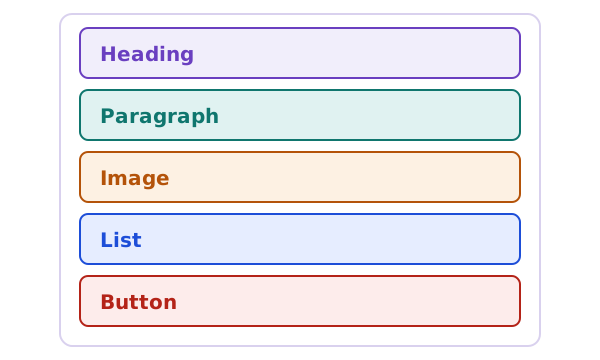
You can edit, change or move one block without touching the others.[1]
This editor has been the default since WordPress 5.0 in December 2018. It replaced the older classic editor.[2] If you prefer the old one, you need a plugin for it.[2]
Open the editor
Go to Posts, then Add New. Or go to Pages, then Add New. The editor opens.
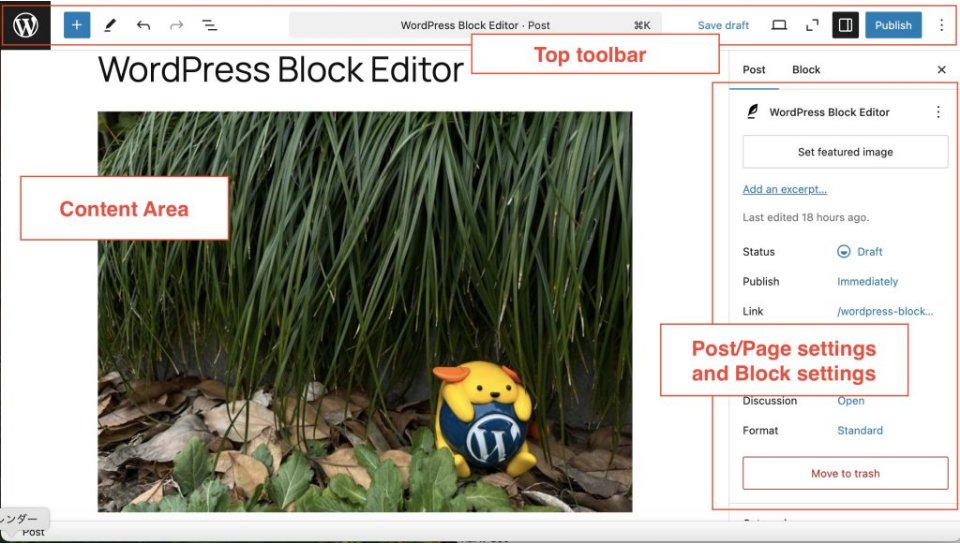
It has three main parts: the top toolbar, the content area and the sidebar.[2]
The top toolbar
The toolbar sits along the top. It has small icons and two main buttons.

The icons do these jobs:[2]
- The plus (+) opens the block inserter. You use it to add blocks, patterns or media.
- Undo and redo reverse an action or bring it back.
- Document overview shows a list of all your blocks. You can jump between them.
- Save draft saves your work without publishing it.
- Settings shows or hides the sidebar.
- Publish makes your post or page public.
Adding a block
There are three common ways to add a block.[1]
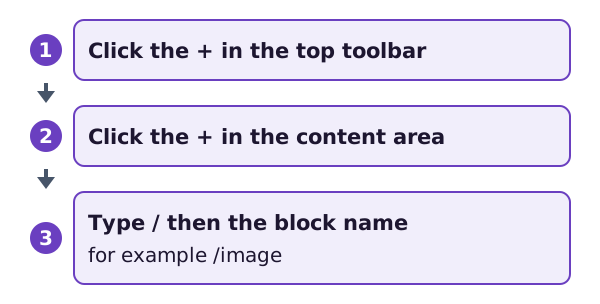
The third way is quick once you learn it. Type / and start a block's name. For example, type /image and pick the Image block. This works in the content area.[1]
Changing a block
Click a block to select it. Most blocks show three things: content you can edit, a small toolbar and extra settings in the sidebar.[1]
The small block toolbar has arrows to move the block up or down one place.[1] The toolbar changes with the kind of block you pick.
The sidebar has two sets of settings. One set is for the whole post or page. It can include the featured image, categories and tags.[1] The other set is for the block you picked.[1] Each block has its own settings there.[1]
Cannot see the sidebar? Select the Settings icon at the top right of the editor, next to the Save or Publish button.[1]
Tools that help you focus
The three-dot menu at the top right has more choices.[2]
- Spotlight mode greys out every block except the one you are on.[2]
- Code editor shows the whole post as HTML code. You can go back to the normal view at any time.[2]
You do not need the code editor to follow this handbook.
Where next
You can save groups of blocks to use again. That is the job of patterns.
Sources
- Work with blocks, WordPress.org Documentation (accessed 2026-10-18)
- WordPress Block Editor, WordPress.org Documentation (accessed 2026-10-18)