 Posts and Plugins
Changing your theme safely
Last reviewed
The short version
- You can change your theme at any time. Your posts and pages stay put.
- Features that the old theme added may disappear.
- Use the official directory, and preview a theme before you switch.
- Back up first. Check your pages afterwards.
Before you start
Make a backup of your site. A backup lets you restore the site if there are any issues.[1]
If you can, try a new theme on a test site first.[2]
What changes and what stays
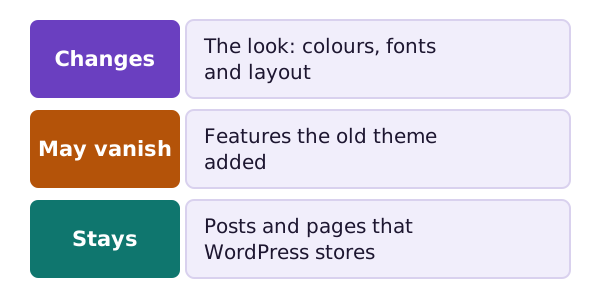
A theme takes the content that WordPress has stored and shows it.[3] So your posts and pages stay when you switch themes.
The look will change. That means colours, fonts and layout.
Some features may go. If the old theme added a feature, such as a portfolio, you can lose it when you change themes.[3]
Look through your site for features you rely on before you switch.
Find a theme
The official theme directory has over 15,000 free themes.[4] Every theme there is reviewed by a team and tested against a wide range of rules.[2]
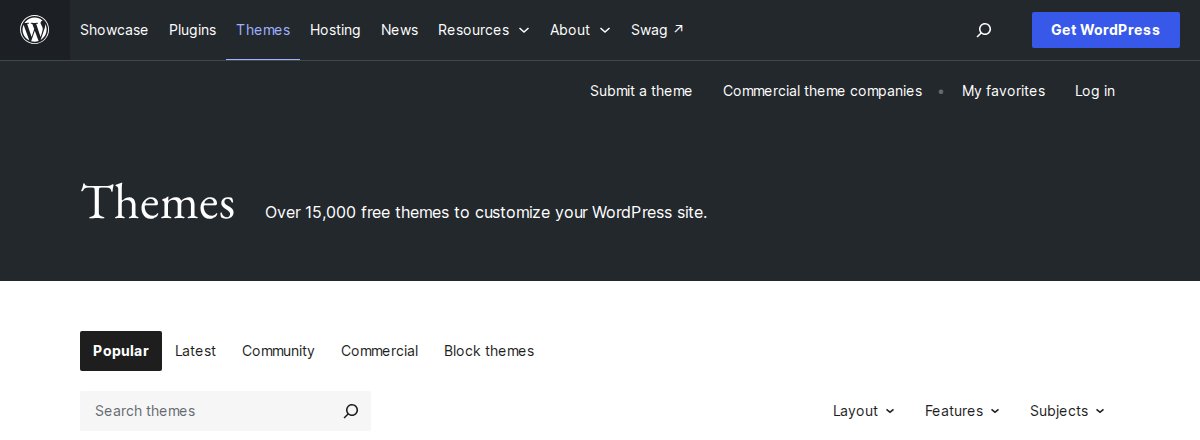
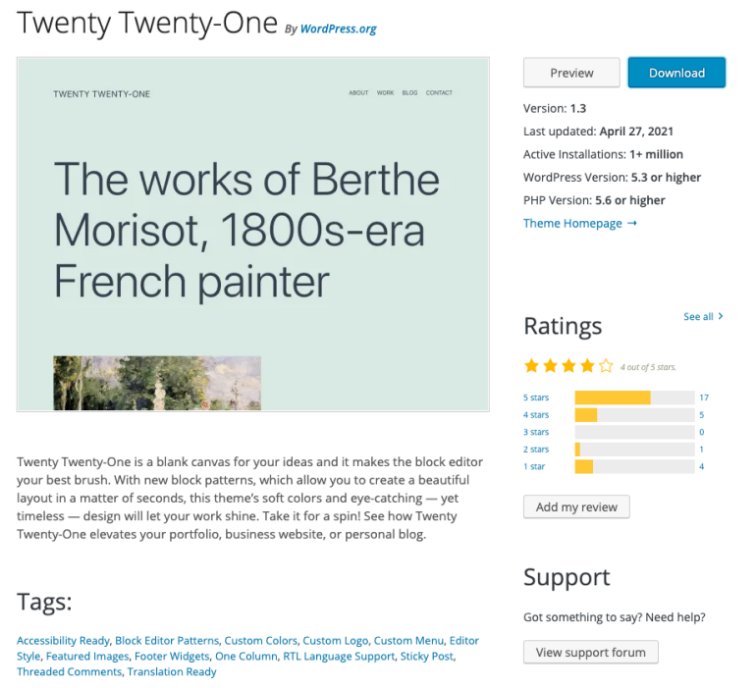
You can search by layout, subject and features.[2] A theme has its own page in the directory. You can use its Preview button to see a demo.[2]
Add the theme to your site
Go to Appearance, then Themes. Then click Add New. Find a theme with the search or filters. You can preview it or install it.[2]
If you have the theme as a zip file, use the Upload Theme button.[2]
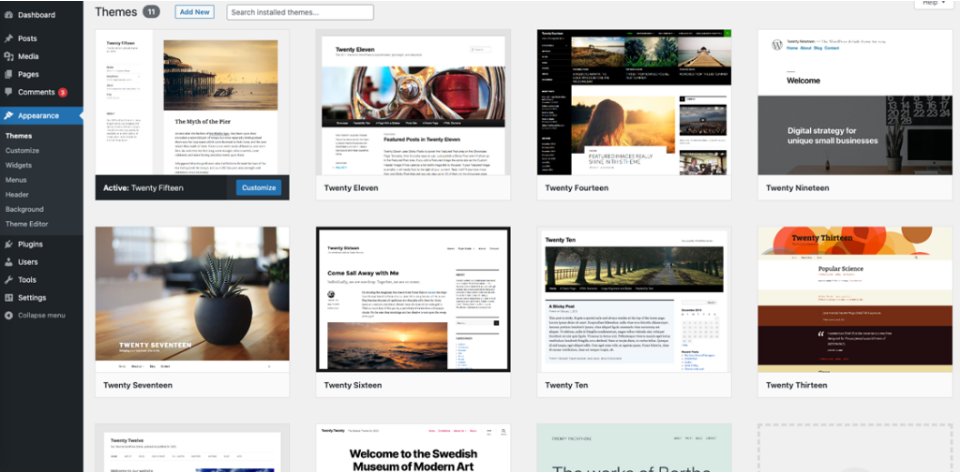
The Themes screen shows each theme you have installed as a small picture. Roll your mouse over a picture to see buttons. You will see Activate and Live Preview.[5]
The safe way to switch
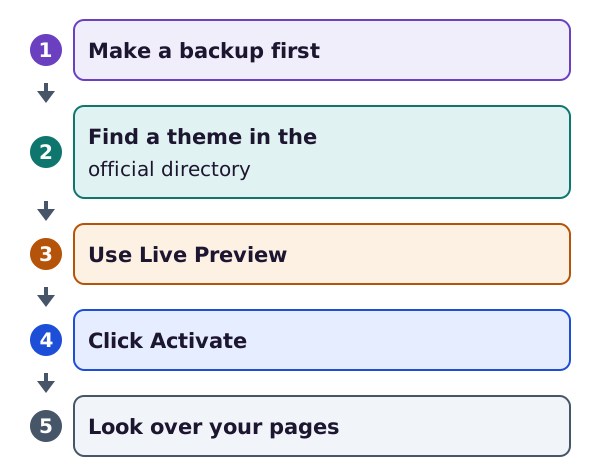
- Back up your site.
- Find the theme in the official directory.
- Preview it. Live Preview shows your own content in the new design.[2] Block themes can be previewed in the Site Editor too.[2]
- Activate it. Only one theme can be active at a time.[2] The change happens straight away.[2]
- Look over your home page, a post, a page and any special features.
If a theme's preview is blank, do not activate it. Look into the problem first.[2]
Deleting a theme you do not use
Delete removes a theme completely. The files go too. If you changed that theme, those changes go with it. So consider backing up before you delete.[5]
Where next
Themes shape the look. Plugins add features. Start with what plugins are.
Sources
- Updating WordPress, WordPress.org Documentation (accessed 2026-10-18)
- Work with themes, WordPress.org Documentation (accessed 2026-10-18)
- What Is a Theme?, WordPress Theme Handbook (accessed 2026-10-18)
- WordPress Theme Directory, WordPress.org (accessed 2026-10-18)
- Appearance Themes Screen, WordPress.org Documentation (accessed 2026-10-18)