 Posts and Plugins
The settings you should know first
Last reviewed
The short version
- Settings are the choices that apply to your whole site.
- Start with General. It holds your site title, tagline and admin email.
- Reading decides what the home page shows. It also has the search engine checkbox.
- Writing sets the default category for new posts.
Where settings live
Open Settings in the main menu. It has several screens.
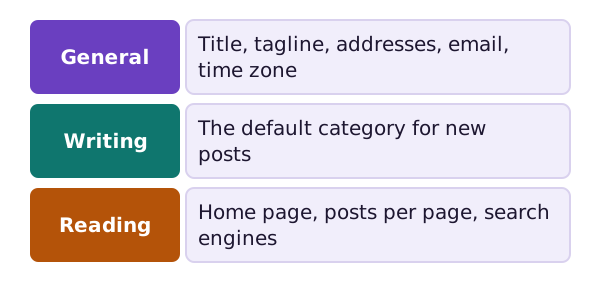
This page covers three of them. Settings also has screens for discussion and for web address shapes.[1] Those are not covered here.
General settings
The General screen holds some of the most basic settings for your site.[2]
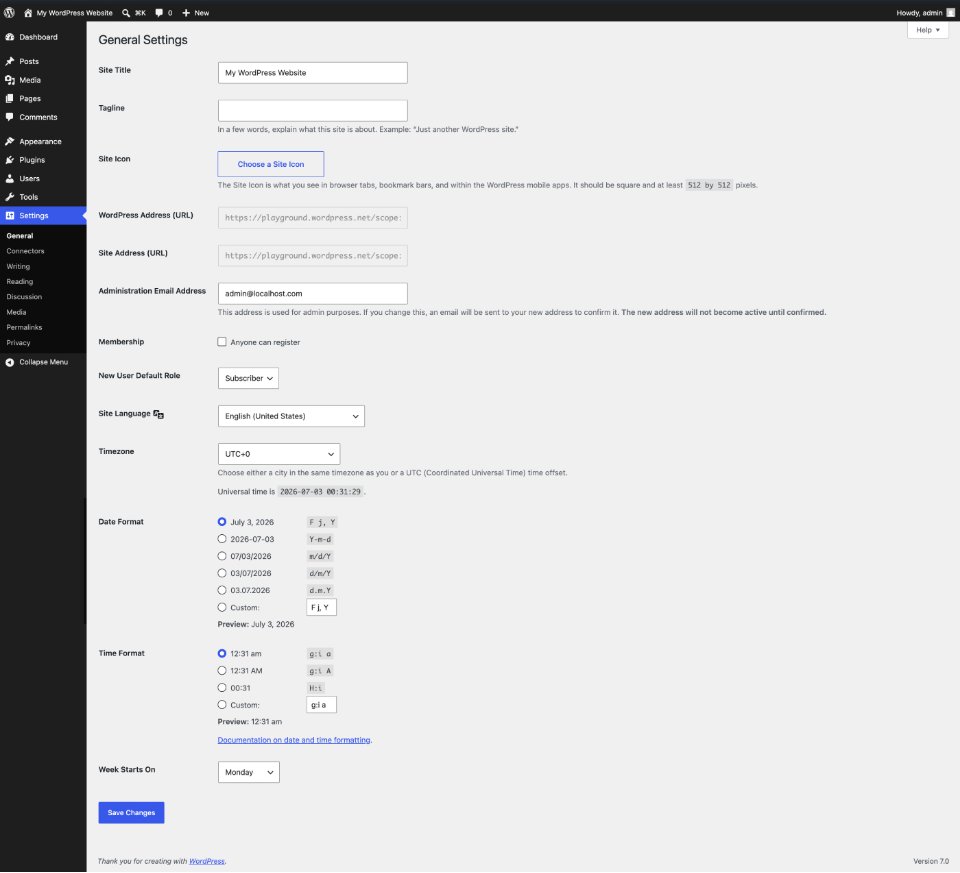
Here are the ones to set first.
Site Title. This is the name of your site. Most themes show it at the top of every page.[2]
Tagline. This is a few words that say what your site is about.[2]
Administration Email Address. WordPress sends site notices to this address.[2] It is not the same as the email on your own user account.[2]
If you change it, WordPress sends a note to the new address. The new address works only after you click the link in that note.[2] Make sure someone can read this inbox. Recovery mode and critical error notices go there.[2]
Timezone. Pick a city in your timezone.[2]
Two addresses
The General screen has two address boxes. They look alike, but they mean different things.
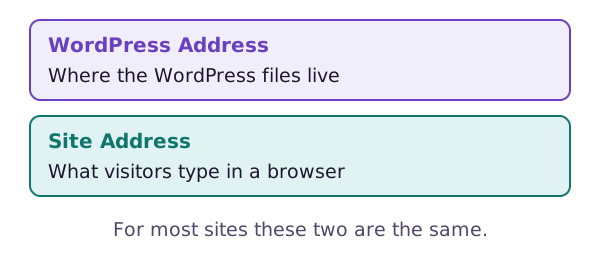
The WordPress Address is where the WordPress files live.[2] The Site Address is what people type in a browser to reach your site.[2]
For most sites these two are the same. They differ only when WordPress lives in its own folder.[2] If you are not sure, leave them alone.
Reading settings
Reading decides what the home page shows and how many posts appear per page.[3] The posts and pages page covers the home page choice.
The same screen has a checkbox called Discourage search engines from indexing this site. Ticking it asks search engines to leave your site out.[3]
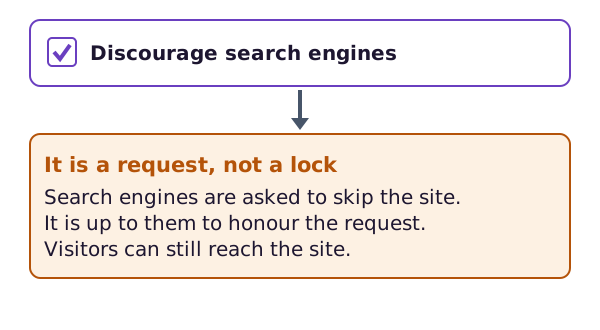
This is a request. It is up to search engines to honour it.[3] The option does not block access to your site.[3] Visitors can still reach it.
Tick it while you build the site, if you wish. Untick it when you want to be found.
Writing settings
Writing has a Default Post Category list. The category you choose is given to any post where you forget to pick one.[4]
If you delete a category, its posts move to this default category.[4]
Save your changes
Each screen has a Save Changes button at the bottom. Your changes are saved to the database when you click it.[2]
Where next
The last page of this handbook is about keeping WordPress updated.
Sources
- Administration Screens, WordPress.org Documentation (accessed 2026-10-18)
- Settings General screen, WordPress.org Documentation (accessed 2026-10-18)
- Settings Reading screen, WordPress.org Documentation (accessed 2026-10-18)
- Settings Writing screen, WordPress.org Documentation (accessed 2026-10-18)