 Posts and Plugins
Keeping WordPress updated
Last reviewed
The short version
- WordPress, your plugins and your themes all get updates.
- Updates fix problems and add features. Many fix security holes.
- WordPress can apply some updates by itself. You choose the rest.
- Back up before you update. Look over your site afterwards.
Why update?
You should always run the latest version of WordPress.[1] Developers also update plugins to add features, improve the code and keep it secure.[2]
When a new version of WordPress is ready, you see a message in your admin screens.[1]
Three things to update
Core, plugins and themes each have their own updates. Translations do too, if your site is not in English.
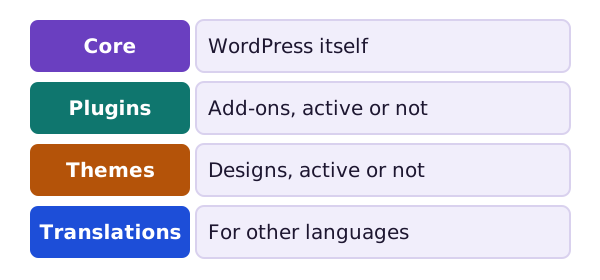
The Updates screen lists them all in one place. You find it under Dashboard. It lets you update core. It also updates all plugins and themes that have updates, active or not.[3]
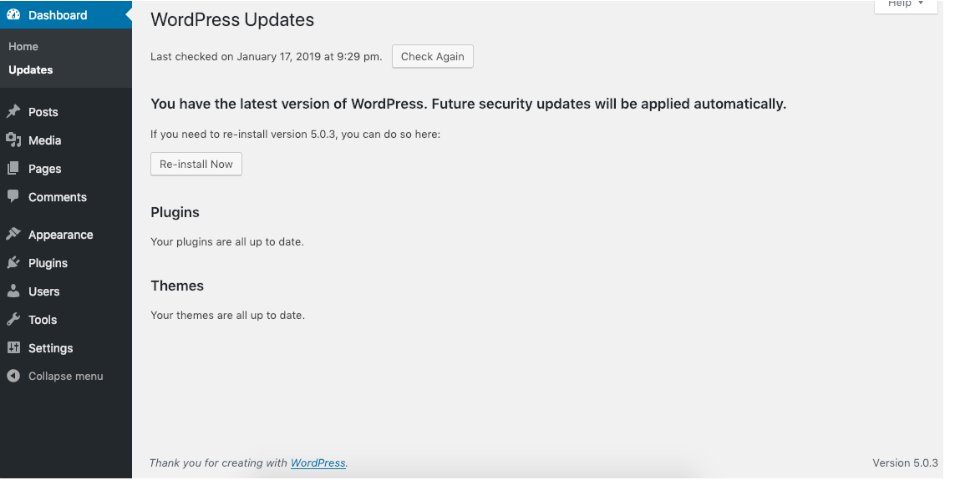
When everything is current, the screen says so. For example: "Your plugins are all up to date."[3]
How to update by hand
For WordPress itself, the easiest way is the one-click update. It works for most people.[1] If it does not work, the cause is probably file permissions on your server.[1] Your host can help.
For plugins and themes, open the Updates screen. Tick what you want to update. Then click the update button.
Use a calm routine
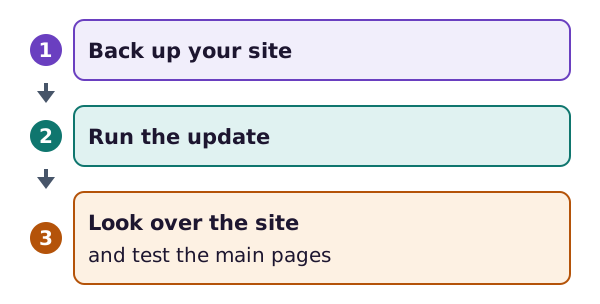
- Back up first. If something goes wrong, you can restore your site.[1] WordPress itself warns you to back up your database and files before an update.[3] The same goes for plugins.[2]
- Run the update.
- Look over the site. Check your home page, a post and any key feature.
Updating a theme replaces its files. If you changed the theme's files yourself, those changes can be lost. WordPress suggests child themes for changes.[3] The same is true for WordPress core files.[1]
What updates itself
WordPress can update parts of itself in the background. This is on for most sites.[4]
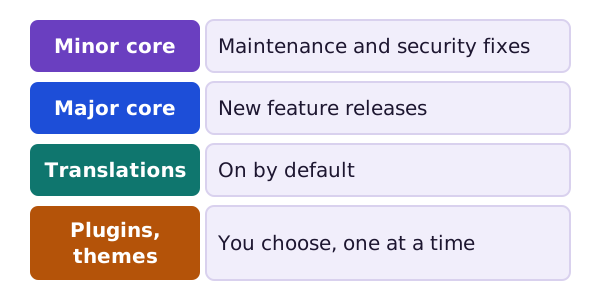
- Minor core updates are fixes for maintenance and security.[4] They are on by default. The WordPress team strongly discourages turning them off.[4]
- Major core updates bring new features. Sites set up with WordPress 5.6 or later get these automatically.[4] Older sites keep their earlier behaviour unless someone switches major updates on.[4]
- Translation files update by themselves.[4]
- Plugins and themes only update on their own in special cases.[4] That is, unless you switch it on.
Plugin and theme auto-updates
Since WordPress 5.5, you can set plugins and themes to update automatically.[5] You can turn it on or off for each one.[5]
For plugins, go to Plugins, then Installed Plugins. Each plugin has a link to enable or disable auto-updates.[2]
When should auto-updates be on?
This is a judgement call, so here is a simple rule of thumb from us.
- Minor core updates: leave them on.[4]
- Plugins and themes you trust and use every day: auto-updates save you work. Keep a current backup.[2]
- Anything your site cannot work without: consider updating by hand. Then you can look over the site straight afterwards.
Whatever you choose, look at your Updates screen now and then.
Your PHP version matters too
Your host runs PHP for you. The Dashboard has a box that shows your PHP version and whether it needs an update.[6] Old PHP versions that have reached their end of life may expose your site to security problems.[7] Ask your host if your PHP is out of date.
The end of this handbook
You now know how WordPress fits together. You have seen the install, the editor, themes, plugins, users, settings and updates. Return to the contents page any time you need a reminder.
Sources
- Updating WordPress, WordPress.org Documentation (accessed 2026-10-18)
- Manage Plugins, WordPress.org Documentation (accessed 2026-10-18)
- Dashboard Updates screen, WordPress.org Documentation (accessed 2026-10-18)
- Upgrading WordPress, Configuring Automatic Background Updates, WordPress Advanced Administration Handbook (accessed 2026-10-18)
- WordPress 5.5 Eckstine, WordPress News (accessed 2026-10-18)
- Administration Screens, WordPress.org Documentation (accessed 2026-10-18)
- Requirements, WordPress.org (accessed 2026-10-18)