 Posts and Plugins
Users and roles
Last reviewed
The short version
- A user is a person who can log in to your site.
- Each user has a role. The role decides what they can do.
- Give each person the smallest role that lets them do their job.
- The person who installed WordPress is an Administrator.
Users and roles
Every person who logs in is a user. WordPress uses roles to control what each user can and cannot do.[1]
A role is a set of tasks. The tasks are called capabilities.[1] For example, one capability is to publish posts. Another is to moderate comments.[1]
When you install WordPress, it makes an Administrator account for you.[1]
The usual roles
WordPress has six built-in roles.[1] Five are for a normal site. The sixth, Super Admin, is for networks of sites.[1]
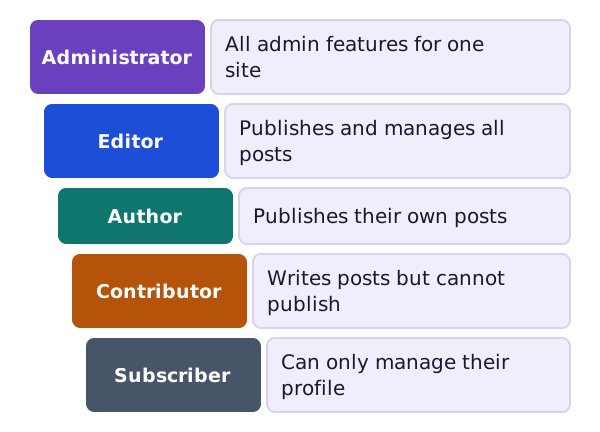
- Administrator: has all the admin features for one site.[1]
- Editor: can publish and manage posts, including other people's posts.[1]
- Author: can publish and manage their own posts.[1]
- Contributor: can write and manage their own posts but cannot publish them.[1]
- Subscriber: can only manage their own profile.[1]
One role is not "senior" to another. Roles describe a person's responsibilities on the site.[1]
Which role should I give?
Pick the smallest role that does the job. Here are some examples.
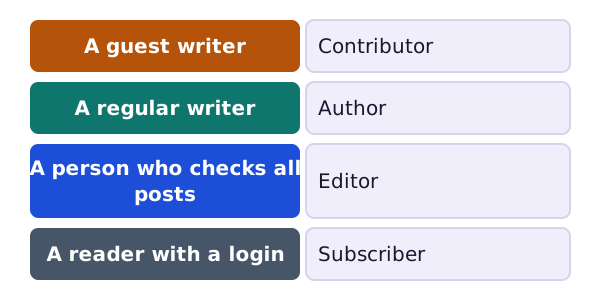
A Contributor can write, but an Editor or Administrator must publish the work. That is a handy check for guest writers.[1]
Add a user
Go to Users, then Add New. You can add users yourself, whether or not people can register on their own.[2]
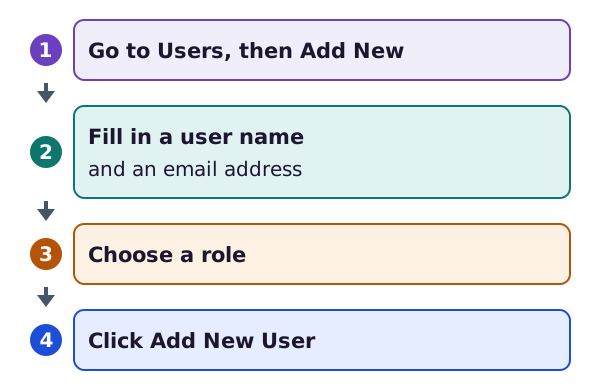
Each user needs a user name and an email address. The email address must be unique for each user.[2] You also choose a role from the drop-down list.[2]
See everyone and change roles
The Users screen lists every user and shows the role of each.[3] You can use it to add, change or delete users.[3]
To change roles, tick one or more users. Then use the Change role to box and click Change.[3]
Deleting a user
You cannot delete the user you are logged in as.[3] When you delete someone else, WordPress asks what to do with their posts.[3]
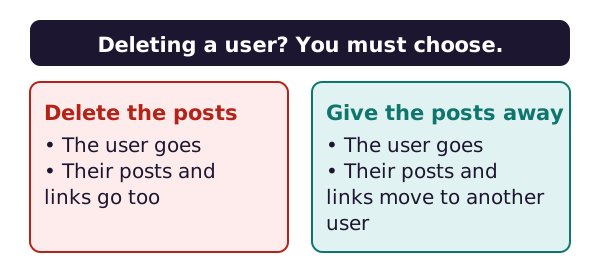
You can delete all their posts and links, or give them to another user.[3]
Who may sign themselves up?
In Settings, then General, there is a box called Anyone can register. If you tick it, anyone can make an account on your site.[4]
Next to it is New User Default Role. It sets the role that new users get.[4] Keep this on the lowest role, unless you have a good reason.
Where next
The General screen has more to explore. See settings you should know.
Sources
- Roles and Capabilities, WordPress.org Documentation (accessed 2026-10-18)
- Users Add New screen, WordPress.org Documentation (accessed 2026-10-18)
- Users screen, WordPress.org Documentation (accessed 2026-10-18)
- Settings General screen, WordPress.org Documentation (accessed 2026-10-18)