 Posts and Plugins
How to judge a plugin before you install it
Last reviewed
The short version
- Every plugin you add is more code on your site. Check it first.
- Prefer plugins from the official directory.
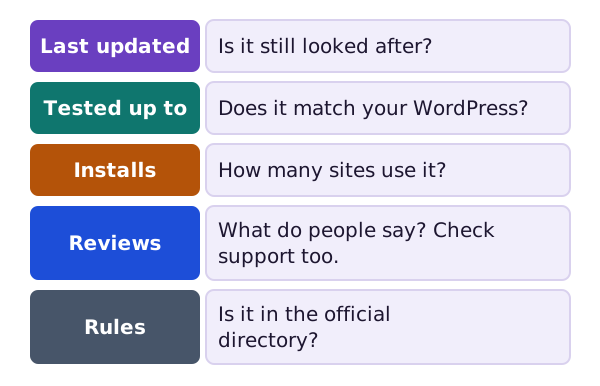
- Look at four things. When was it last updated? What was it tested with? How many sites use it? What do people say?
- Be slow to install a plugin you do not truly need.
Why check at all?
Plugins in the official directory are tested and considered safe. Even so, they vary in quality. Many are works in progress.[1]
You will be the one who looks after the plugin. A few checks take a minute and save trouble later.
Start in the official directory
The directory exists to give WordPress users a safe place to get plugins.[2]
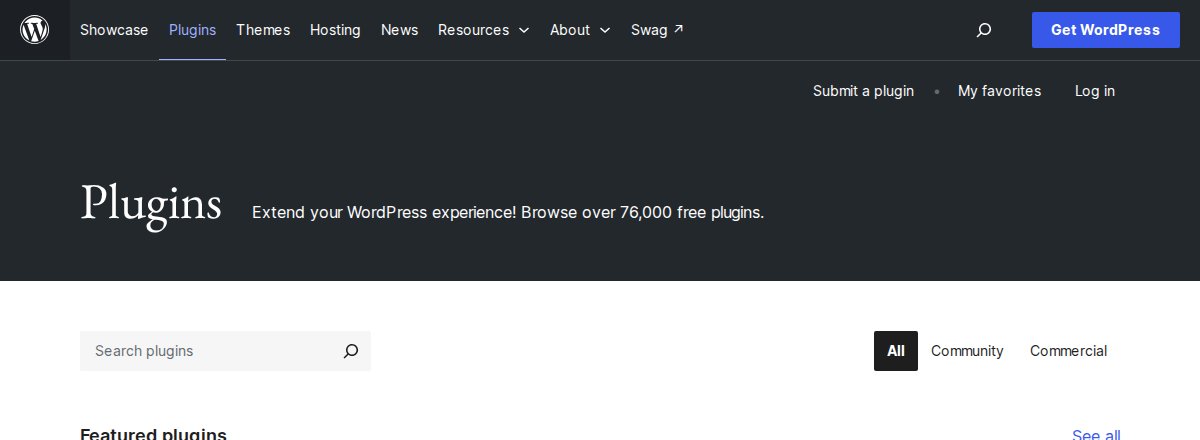
Its rules help you. For example, a plugin there must be compatible with the GNU General Public License.[2] It cannot be trialware, which means a plugin with parts locked until you pay.[2] Plugins may not track users without consent.[2] The code must be mostly readable by people.[2]
If a plugin is found to have security problems, it is closed until the problem is fixed.[2]
These rules are for the directory. If you get a plugin somewhere else, you must judge it on your own.
Read the plugin page
Every plugin has a page in the directory. A box on that page lists key facts.
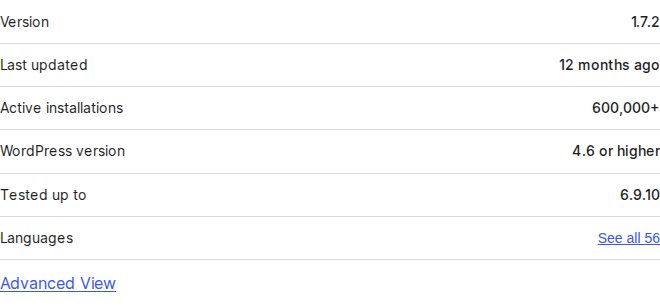
Look at these:
- Last updated tells you when the plugin was last changed.[3]
- Tested up to is the newest WordPress version the author tested it with.[4]
- Active installations shows how many sites use it.[3]
- WordPress version shows the oldest WordPress it works with.[3]
Authors can also state the lowest PHP version a plugin needs.[4] Compare that with what your host runs.
Inside your dashboard, the Add New screen gives a quick hint. Each plugin has a note such as "Compatible with your version of WordPress" or "Untested with your version".[1]
Check compatibility
If a plugin has not been updated since the latest WordPress update, it may not work. Or its compatibility may be unknown.[1]
Warning signs
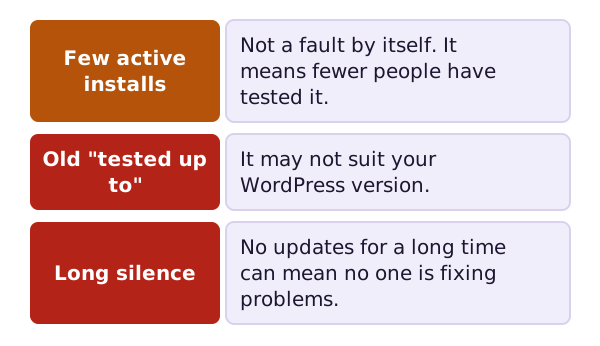
These are only hints. They do not prove a plugin is bad. A plugin with few installs is not always poor. It means fewer people have tried it. Treat each sign as a reason to look closer.
Read the reviews and the support tab
The plugin page also has reviews. Reviews tell you what other people found.
On the plugin page, the Support tab lists problems that people reported.[1] Check whether the author answers them.
Who made it?
The plugin page names its authors and contributors.[3] See whether they have other work you can find. Choose plugins whose makers you can identify.
Updates for plugins from elsewhere
Plugins from the directory show update notices on your Plugins screen. For a plugin you installed from a zip file, you only see an update notice if the author built in an updater.[5] So check back with the author now and then.
Where next
A plugin is only safe while it stays current. Read about updates. First, learn who can do what on your site in users and roles.
Sources
- Manage Plugins, WordPress.org Documentation (accessed 2026-10-18)
- Detailed Plugin Guidelines, WordPress Plugin Handbook (accessed 2026-10-18)
- Hello Dolly, a plugin page in the WordPress plugin directory, WordPress Plugin Directory (accessed 2026-10-18)
- Plugin Readmes, WordPress Plugin Handbook (accessed 2026-10-18)
- Plugins screen, WordPress.org Documentation (accessed 2026-10-18)